Section: Support/IT
iPhone and iPod Wireless Guide
Staff, Faculty and Students: 1. Press the Home button on your device, then select the “Settings” icon 2. Tap “Wi-Fi” from the selections Ensure that the Wi-Fi switch (the very first setting) is set to on. If it is off, tap it to turn it on Select the VTC network […]
Staff, Faculty and Students:
1. Press the Home button on your device, then select the “Settings” icon

2. Tap “Wi-Fi” from the selections
- Ensure that the Wi-Fi switch (the very first setting) is set to on. If it is off, tap it to turn it on
- Select the VTC network
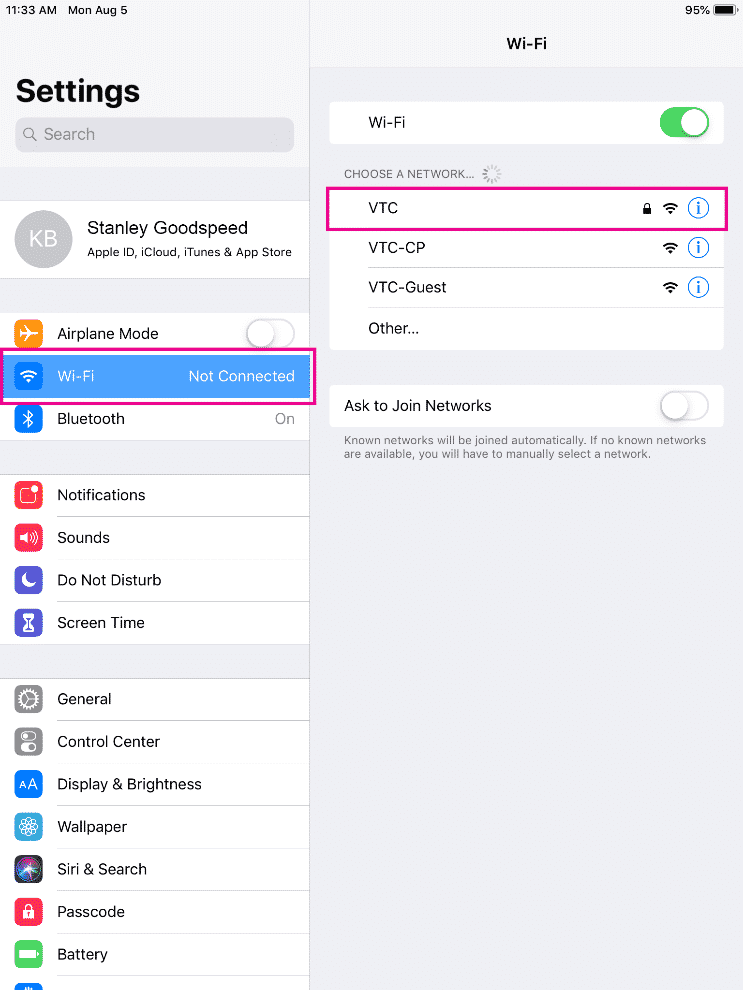
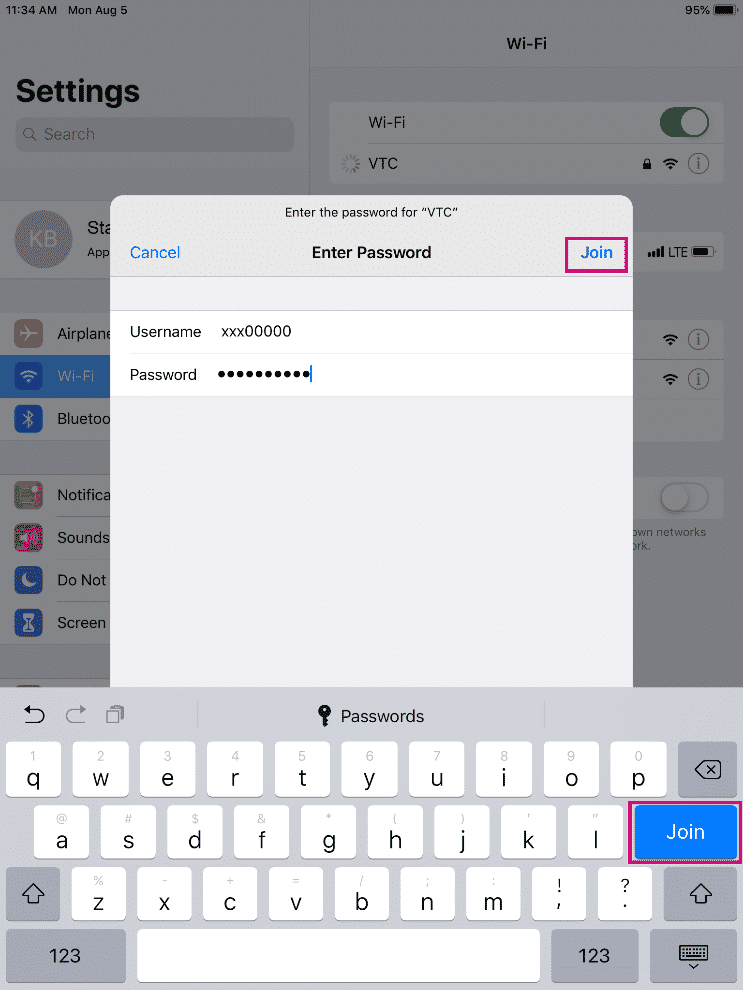
3. Enter your VTC username and password and press “Join”
4. This will bring up the “Certificate” screen. Click the blue “Trust” in the top right hand corner

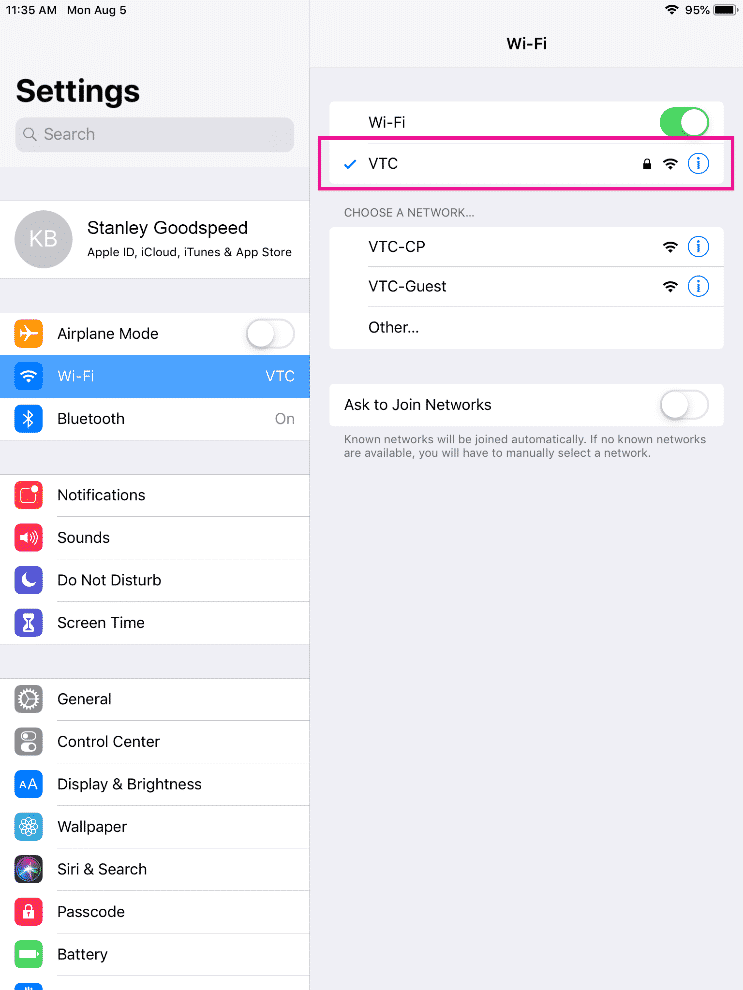
You should now be connected to the VTC network
Android Wireless Guide
Staff, Faculty and Students: 1. Open the Settings app 2. Click on Network & Internet 3. Click on Wi-Fi 4. Make sure Wi-Fi is enabled and select the “VTC” network 5. Change a few settings: Set EAP Method to: PEAP Set Phase 2 authentication to: MSCHAPV2 Leave CA Certificate as: […]
Staff, Faculty and Students:
1. Open the Settings app

2. Click on Network & Internet

3. Click on Wi-Fi
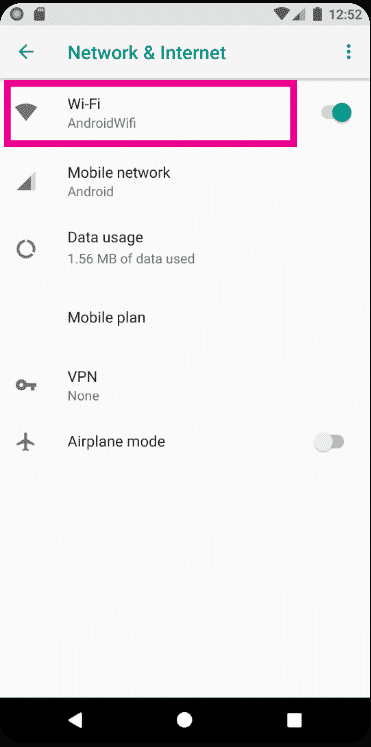
4. Make sure Wi-Fi is enabled and select the “VTC” network
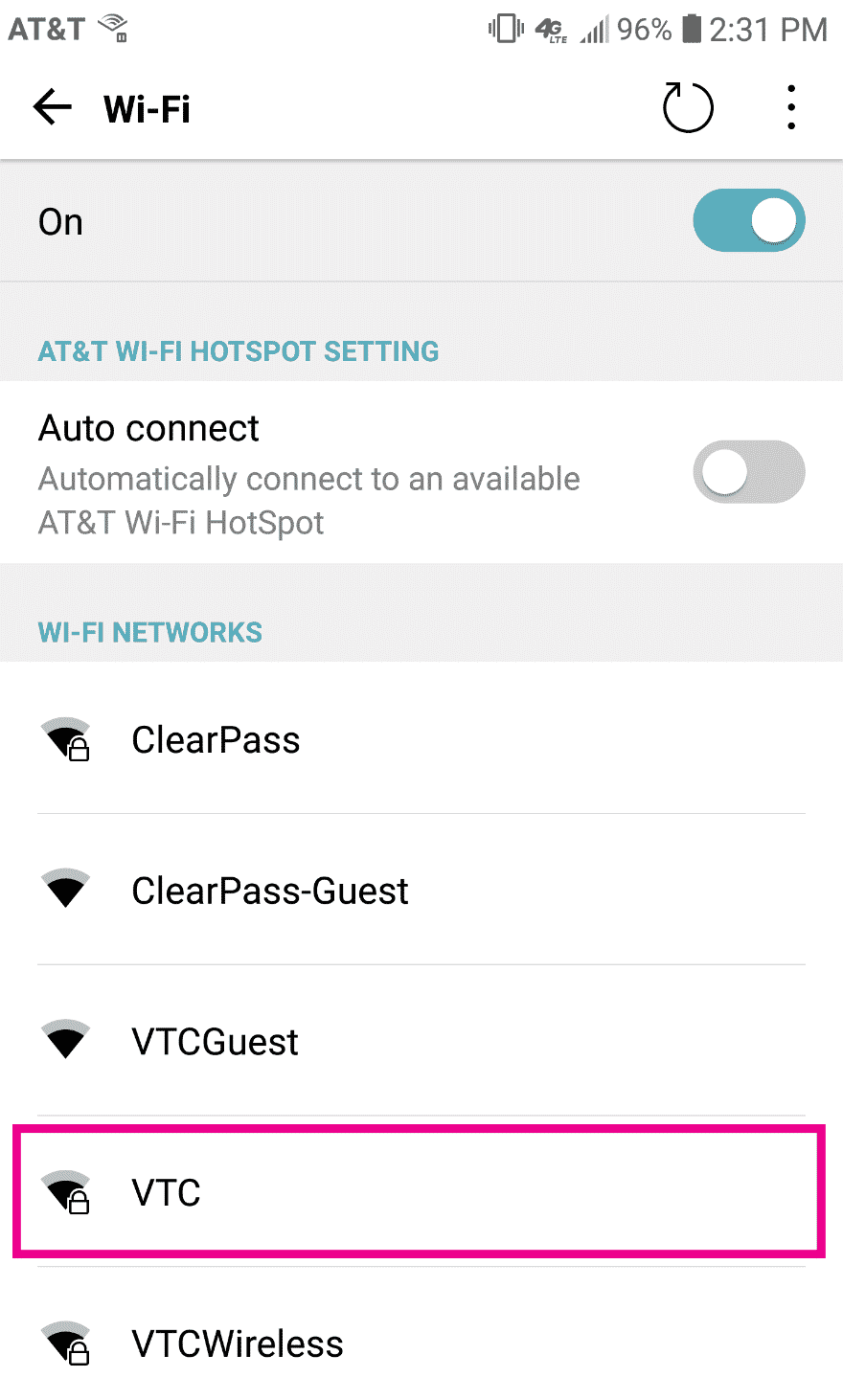
5. Change a few settings:
- Set EAP Method to: PEAP
- Set Phase 2 authentication to: MSCHAPV2
- Leave CA Certificate as: (unspecified)

6. Enter your VTC username in the Identity field and password in the Password field
- Leave Anonymous Identity blank
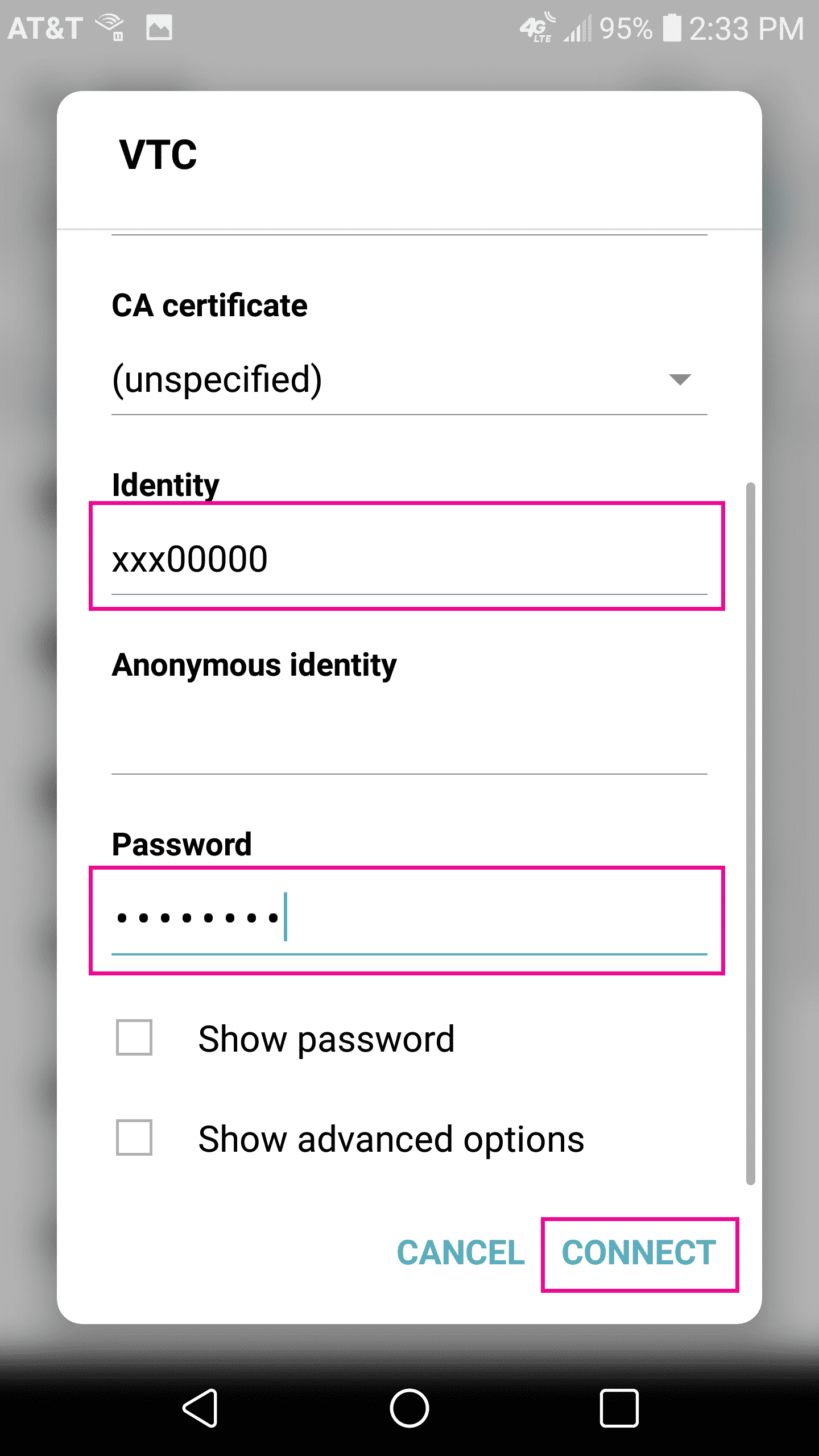
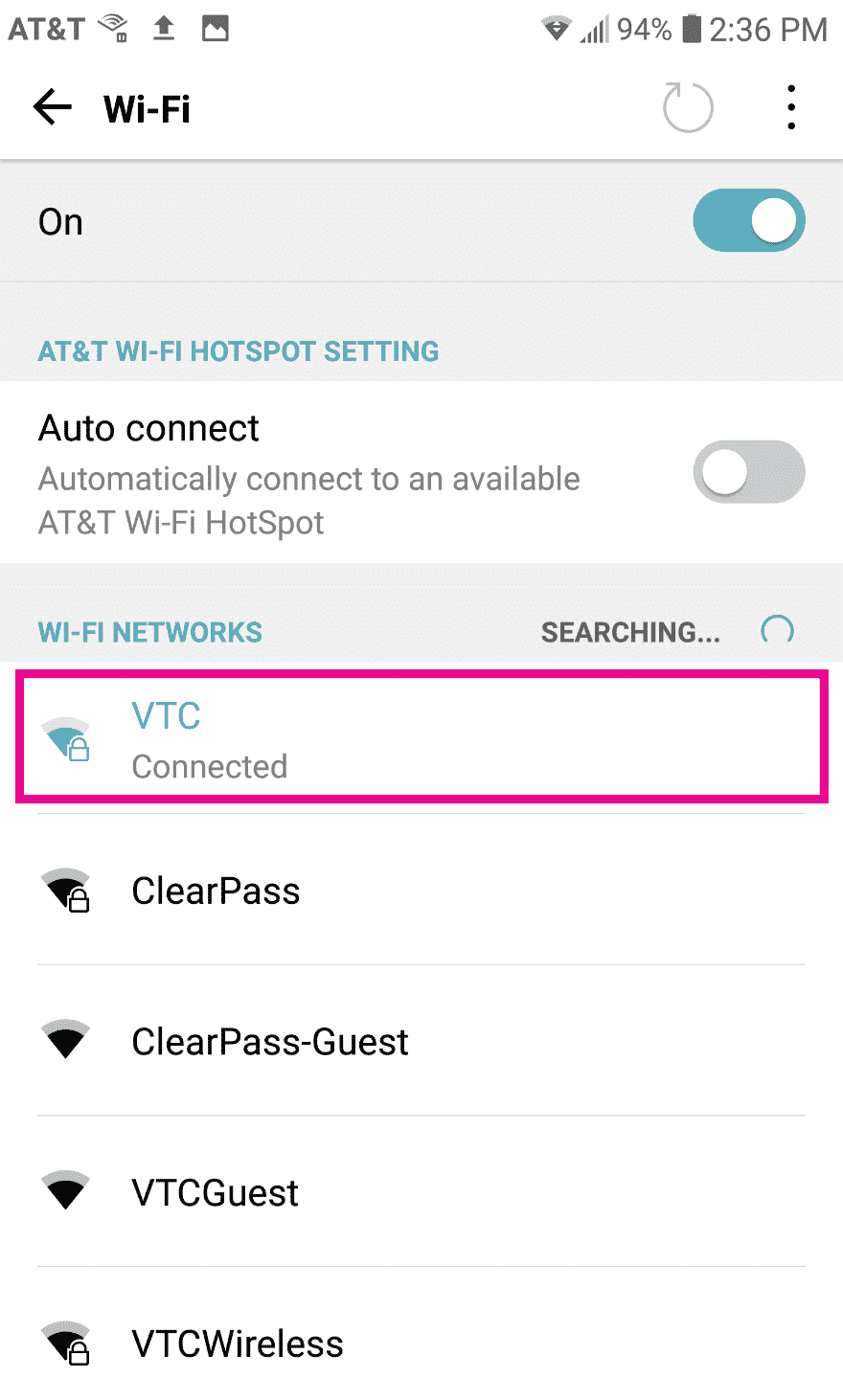
7. Click Connect and you should be connected
Mobile Devices
Linux Wireless Guide
Staff, Faculty, and Students: This should work for all distros that use Network Manager Applet as their network manager. (Ubuntu, Linux Mint, Fedora, etc.) Make sure that you have wireless drivers installed. You should be able to check “Enable Wireless” by right clicking on the network manager on your panel. […]
Staff, Faculty, and Students:
This should work for all distros that use Network Manager Applet as their network manager. (Ubuntu, Linux Mint, Fedora, etc.)
Make sure that you have wireless drivers installed.
You should be able to check “Enable Wireless” by right clicking on the network manager on your panel.
Next right click on the network manager then go to “edit connections”
Click on the wireless tab then click add. A box should appear to edit the connection settings
- For connection name enter a name of your choice
- Check the box “Connect Automatically”
- For SSID: enter VTC
- Make sure mode is set to infrastructure
Click on the wireless security tab
- Security is set to WPA and WPA2 Enterprise
- Authentication is set to Protected EAP (PEAP)
- CA Certificate is none
- PEAP Version is 0 (zero)
- Inner Authentication is set to MSCHAPv2
- Username and Password are your VTC credentials
Click the IPv4 tab and make sure method is set to automatic
- Now click okay to that box and then left click on the network manager.
- Select VTC from the list.
You may need to enter your credentials again, but you should now be connected to the wireless.
Mac OS X Wireless Guide
How to connect to the wireless on Mac OS 1. Click the Wi-Fi icon in the upper-right of the screen, by the clock. In the dropdown menu, select the VTC network. 2. In the pop-up box, enter your VTC username and password, then click Join 3. Click Continue 4. In […]
How to connect to the wireless on Mac OS
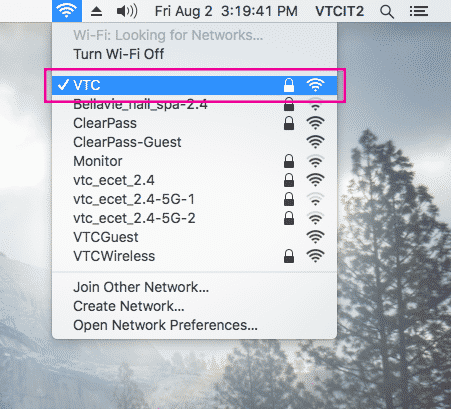
1. Click the Wi-Fi icon in the upper-right of the screen, by the clock.
- In the dropdown menu, select the VTC network.
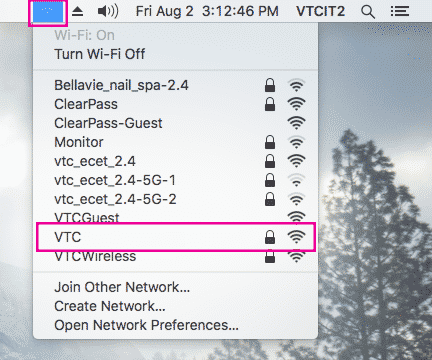
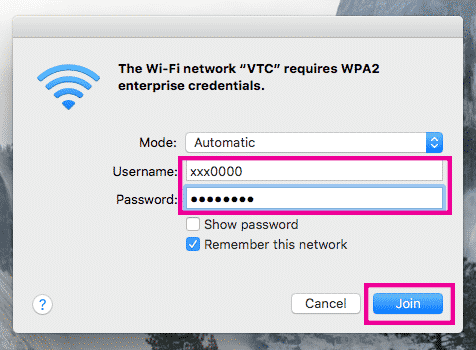
2. In the pop-up box, enter your VTC username and password, then click Join
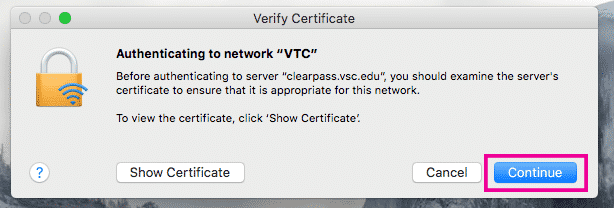
3. Click Continue
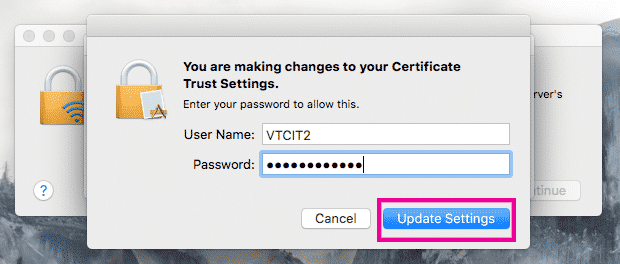
4. In the dialogue window that pops up, enter the user name and password of your device (not your VTC credentials), then click Update Settings
You are now connected to the VTC network.
Account Issues
Wireless
Portal
If you are currently experiencing issues with the Portal or have questions, please submit a ServiceDesk request or contact us at (802) 728-1721.
If you are currently experiencing issues with the Portal or have questions, please submit a ServiceDesk request or contact us at (802) 728-1721.