Printing on Campus Printers are automatically mapped in all labs, providing easy access to the closest printer. Printers are also named by location and feature–for example, “WIL207 Color” is located by room 207 on the Williston campus, and is a color printer. Students have a limited number of print jobs […]
Printing on Campus
Printers are automatically mapped in all labs, providing easy access to the closest printer. Printers are also named by location and feature–for example, “WIL207 Color” is located by room 207 on the Williston campus, and is a color printer. Students have a limited number of print jobs per academic year, as indicated by your Papercut Balance. If you exceed your yearly allotment please contact the Helpdesk for assistance.
To access printers from personal device you will need to use the WebPrint system. Follow the steps below to submit a job to the desired printer:
- Open a browser and navigate to https://vtcprinters.vtc.vsc.edu
- Log in using your VTC account
- Click the “WebPrint” option, found at the bottom of the left-hand navigation bar
- Click the “Submit Job” button, then select the desired printer. Note that individual printers are listed on the Williston campus, while the Randolph campus uses the Follow_Me_B&W and Follow_Me_Color printers. The “Follow Me” options will allow you to manually release your print job at any printer on the Randolph campus, while the Williston printers will immediately print your job when completed.
- After selecting your printer, click Next to set the number of copies, then Next again to upload your document.
- Choose your file to print. Note that these files must be either images or .PDF files. You can convert any Microsoft Office document to a .PDF via the “Save as PDF” option, found under the File tab.
- Once submitted the job will either wait in the queue for manual release (Follow_Me printers) or will print immediately (named printers)
Note: This page is for mapping your personal Windows Device to your student or staff drives on campus. If you are using a school computer and your drives are not mapped, please type the following in the Search area by your Start menu User Group Type this: Faculty and Staff […]
Note: This page is for mapping your personal Windows Device to your student or staff drives on campus.
If you are using a school computer and your drives are not mapped, please type the following in the Search area by your Start menu
| User Group |
Type this: |
| Faculty and Staff Users |
\\vtcfiles\tasks\remap.bat |
| Student Users |
\\vtcfiles\tasks\sturemap.bat |
Mapping Your Personal Device
- Windows 7
- Click the Start menu and go to Computer.
- Choose Map network drive

- Windows 10
- You click on File Explorer at the bottom of the start page

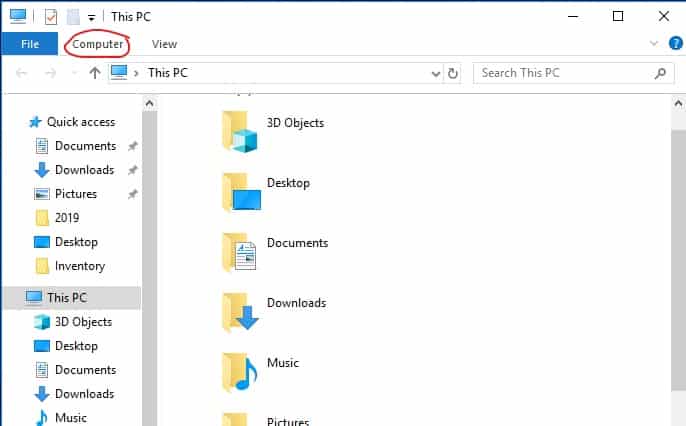
- Then choose Map network drive (Windows 10).
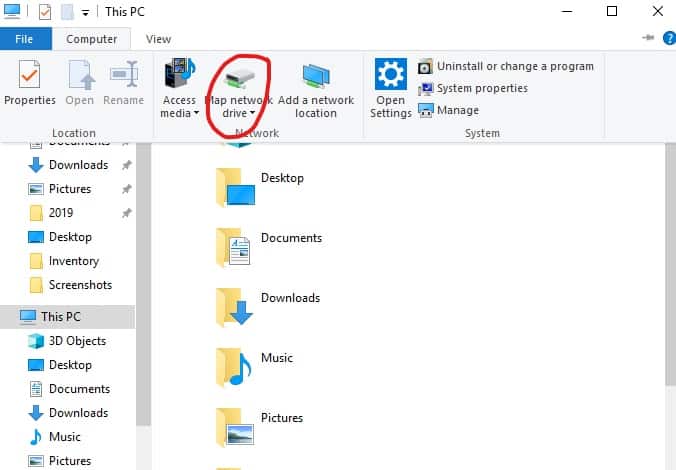
- Instructions are the same for Windows 7 and Windows 10 after this
Choose any drive you like for the Drive field.
- In the Folder field, enter the full path for the network drive you are attempting to map:
| Drive |
User Group |
Full Path |
| M: |
Faculty and Staff Users |
https://vtcfiles2.vtc.vsc.edu/home/yourusername |
| M: |
Student Users |
https://vtcfiles2.vtc.vsc.edu/stuhome/yourusername |
- This screen will pop up
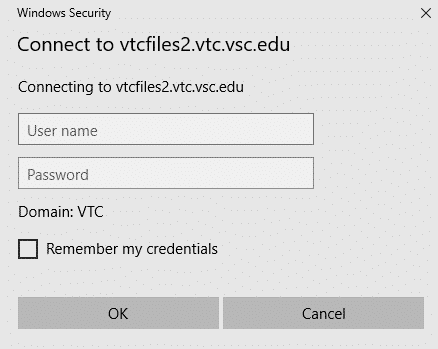
- When prompted for credentials, enter:
- Username: vtc\<yourVTCusername>
- Password: <yourVTCpassword>
In Finder, click the Go menu and choose Connect to server. In the Server Address field, enter in the full path of the network drive that you want to connect to (see table below) and click the Connect button. Drive User Group Full Path M: Faculty and Staff Users https://vtcfiles2.vtc.vsc.edu/home/yourusername M: Student Users https://vtcfiles2.vtc.vsc.edu/stuhome/yourusername […]
- In Finder, click the Go menu and choose Connect to server.
- In the Server Address field, enter in the full path of the network drive that you want to connect to (see table below) and click the Connect button.
| Drive |
User Group |
Full Path |
| M: |
Faculty and Staff Users |
https://vtcfiles2.vtc.vsc.edu/home/yourusername |
| M: |
Student Users |
https://vtcfiles2.vtc.vsc.edu/stuhome/yourusername |
- When prompted for credentials, enter the following:
- On Mac OS X 10.7
- Connect as: Registered User
- Username: vtc\<<yourVTCusername>>
- Password: <<yourVTCpassword>>
- On other versions of Mac OS X
- Connect as: Registered User
- Domain: VTC
- Username: <<yourVTCusername>
- Password: <<yourVTCpassword>>
- Click Connect and the drive you connected to should now be listed in the left-side menu in a Finder window.
Students, faculty and staff can download and install Microsoft Office on up to five devices for free. This includes the Mac/Windows versions as well as the mobile app versions. For the mobile version, you can download them from the App Store on your device. For Mac/Windows computers, please go here: […]
Students, faculty and staff can download and install Microsoft Office on up to five devices for free.
This includes the Mac/Windows versions as well as the mobile app versions.
For the mobile version, you can download them from the App Store on your device.
For Mac/Windows computers, please go here: https://portal.office.com/OLS/MySoftware.aspx
NOTE: When asked to sign in, make sure to use the format abc01230@vsc.edu for your email address, it should then redirect to the VSC logon page where you need to login normally. This will need to be done for both the Mac/Windows and mobile app versions.
You can also purchase several applications or subscriptions from vtc.onthehub.com at discounted rates.
If you are interested in any of these products, please visit vtc.onthehub.com and log in with your Vermont Tech username and password. The website will automatically charge your Vermont Tech account (for students) or credit card (for employees) accordingly.
To connect to the Guest Wireless network, open your wireless network manager and add or select “VTC-Guest” Once you are connected, open a web browser and you will automatically be taken to the guest registration page. Enter your information, accept the terms of use, and click Register. If you already […]
To connect to the Guest Wireless network, open your wireless network manager and add or select “VTC-Guest”
Once you are connected, open a web browser and you will automatically be taken to the guest registration page.
- Enter your information, accept the terms of use, and click Register.
- If you already have active guest login credentials, click the “Sign In” link (below the “Register” button) to access the log in page.
- If you do not have access to a mobile phone with texting, you may sign up with email by clicking “Register with your email”.
- **NOTE: If you have any issues, or do not have access to a mobile phone or email, contact you conference organizer or local IT department, for assistance**
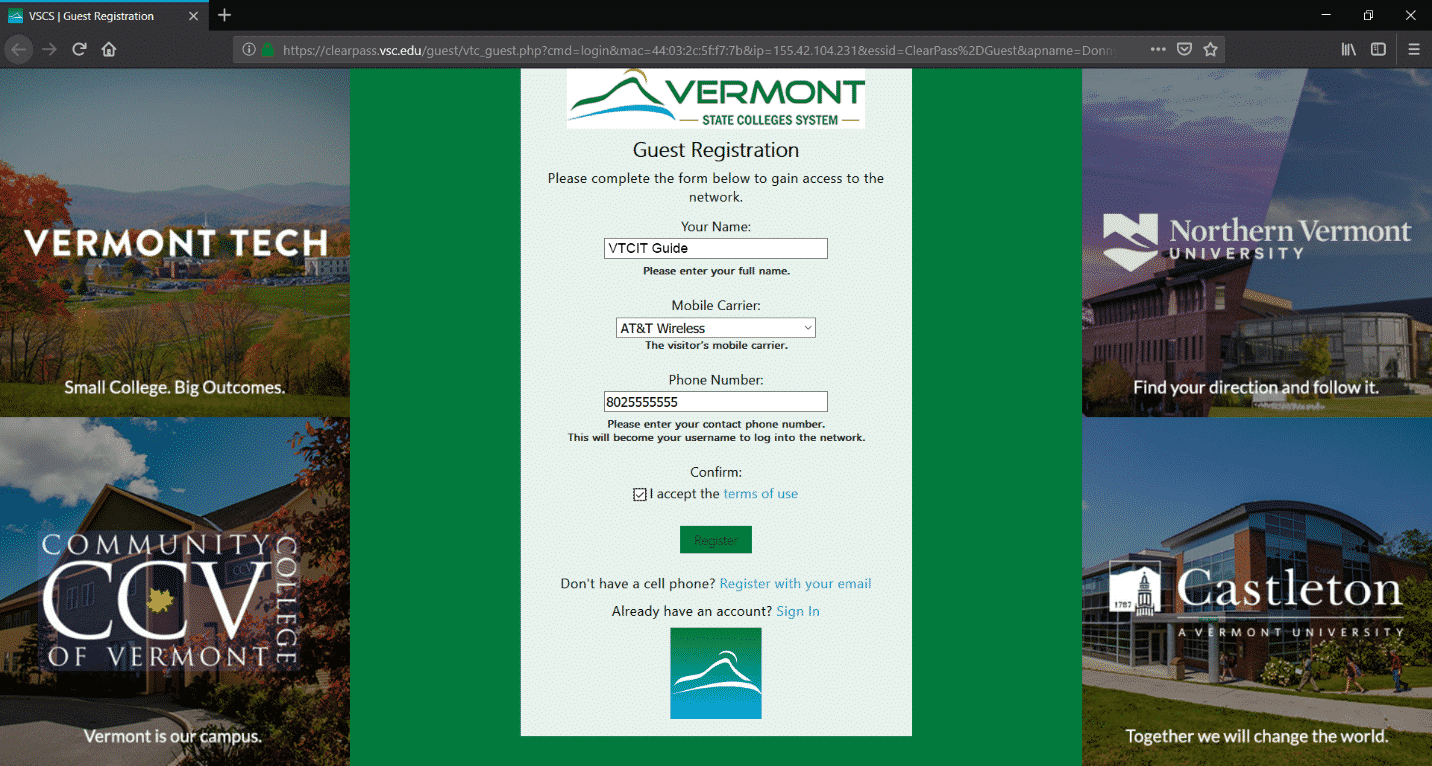
After entering registration information, you should be directed to a page similar to the one below
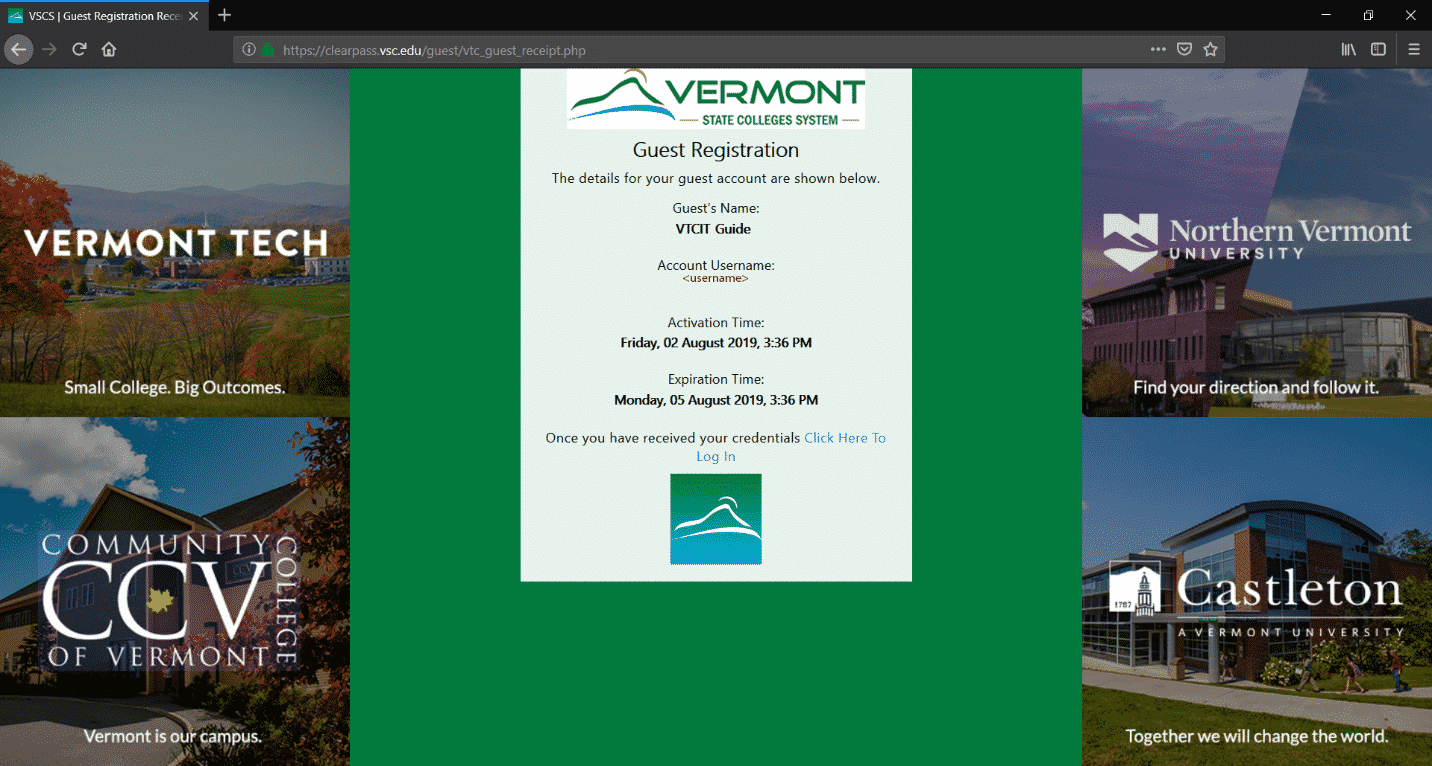
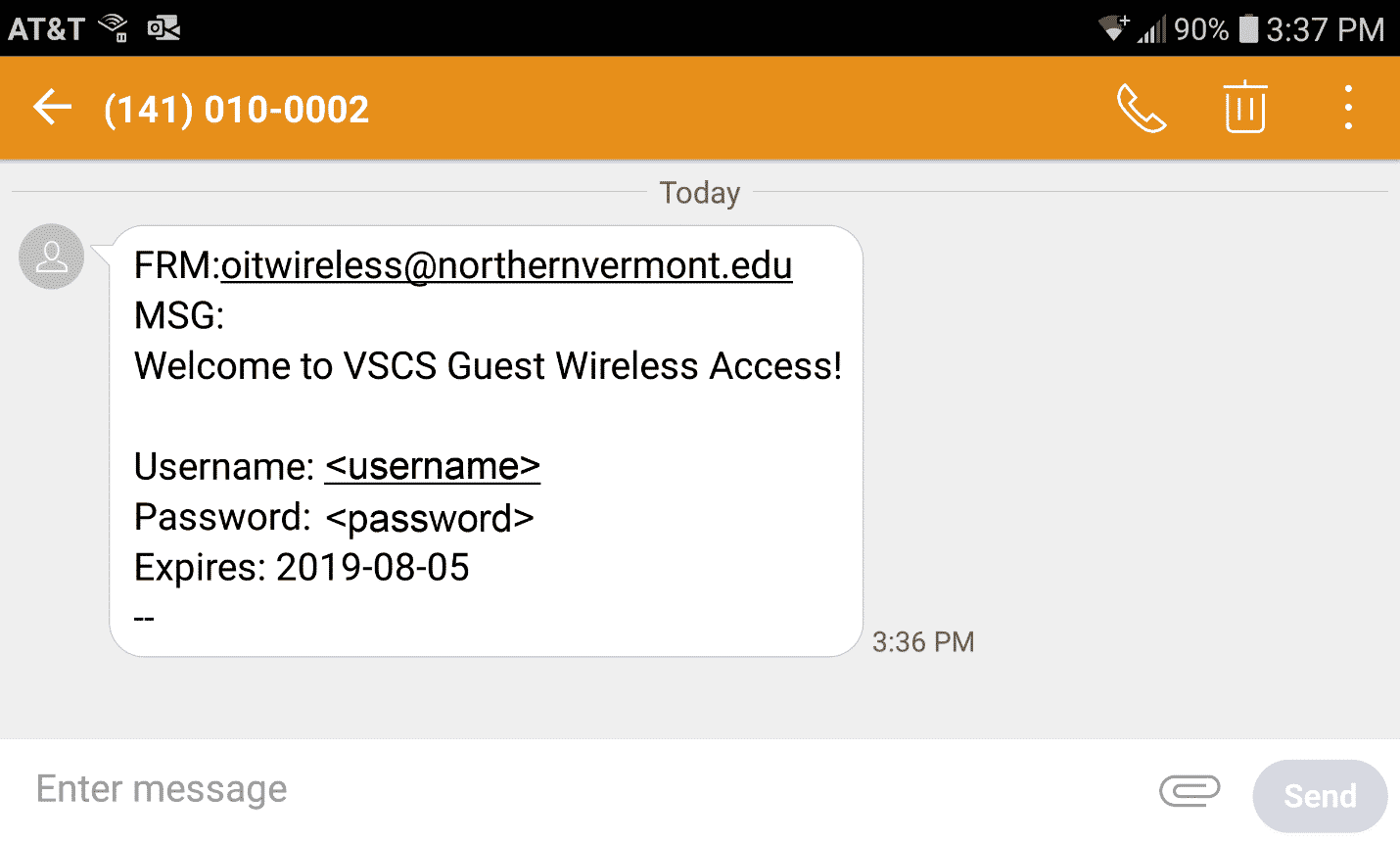
You should receive a text message with your username and password at the phone number you entered on the guest registration form.
- If you entered your email address instead, you will receive an email
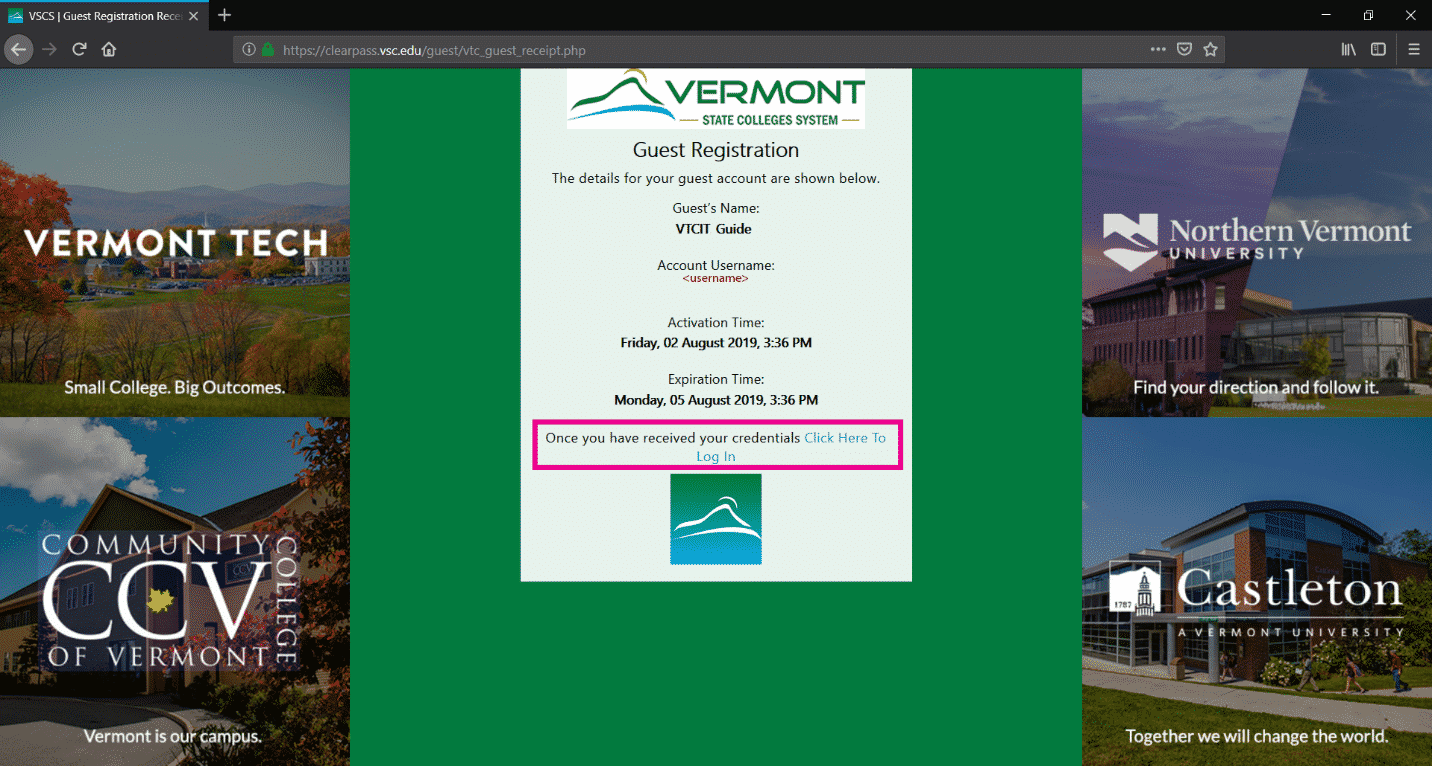
Back in your browser window, click on the link “Click Here To Log In”
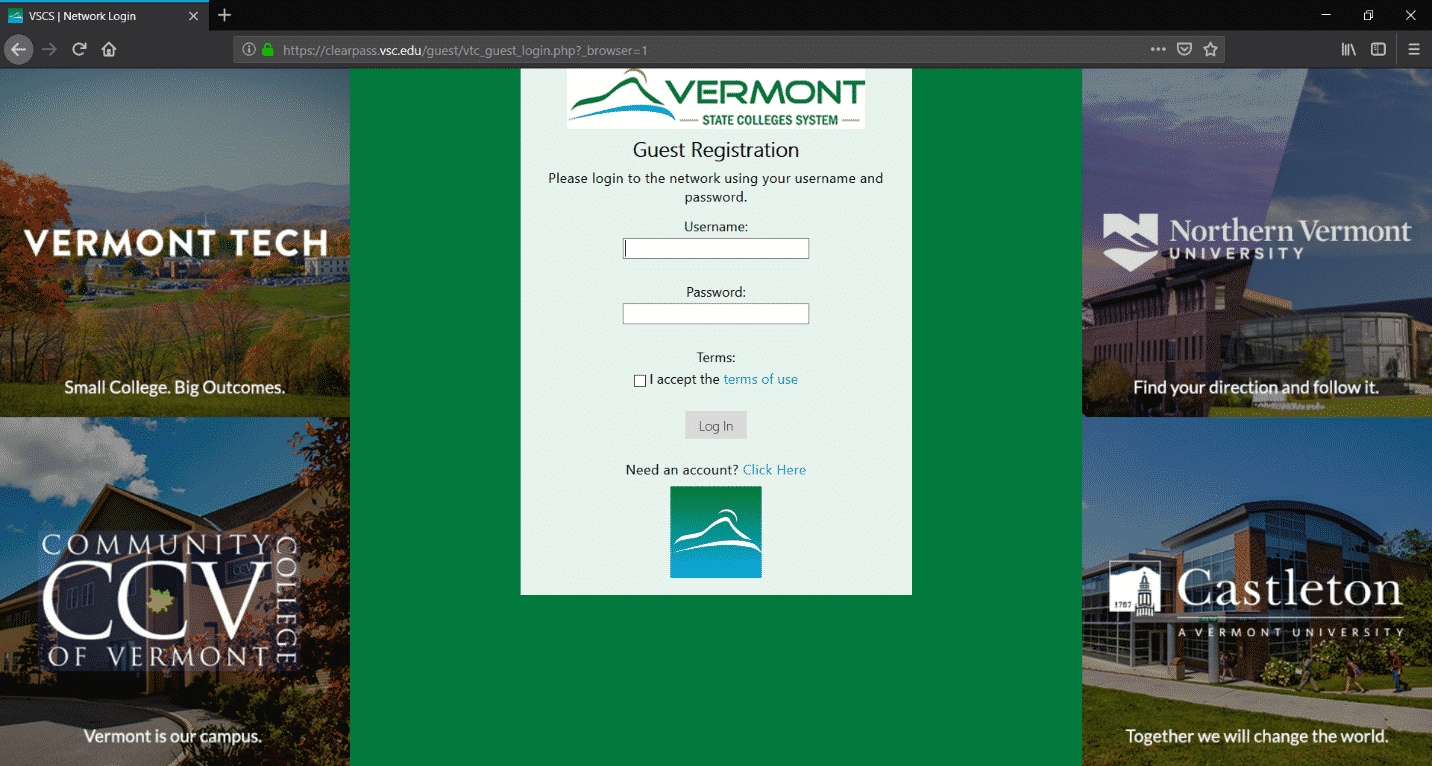
Enter your username and password, accept the terms of use, and click “Log In”
What is Phishing? Phishing is a method of trying to get a person to reveal sensitive information, such as passwords or credit card numbers. There are a number of slightly different methods: saying there was an account problem and a password is needed to fix it (NEVER give out your password. […]
What is Phishing?
Phishing is a method of trying to get a person to reveal sensitive information, such as passwords or credit card numbers. There are a number of slightly different methods: saying there was an account problem and a password is needed to fix it (NEVER give out your password. Not to VTC IT, not to any company. They don’t need it. If someone asks for your password, they are phishing.) or sending a link to a legitimate-looking website that will save the information you put into it. You can even be phished over the phone.Often times, especially in e-mail, they will use scare tactics to get you to act without considering the legitimacy of the e-mails. For example, a phishing e-mail may say it is from your bank and that if you do not provide information, your account will be closed immediately.
How do I avoid being Phished?
There are a lot of ways to help avoid being phished. The best way is to know what you’re looking for and be very careful with your information.
- Never give out your password. All legitimate sites have a system in place that allows you to reset your password if it is lost. This is because businesses run websites, and you can’t always trust your employees to be completely honest. Thus, there are always systems in place to help you keep your password a secret.
- Avoid clicking links in e-mails. Instead, you should copy it and paste it into your address bar. For example, you may see something like this: http://support.vtc.edu/index.php/webservices, and if you do, you should place the mouse pointer over the link without clicking it and look in the bottom left of your browser. Sometimes, like with that link, it is not what it appears to be.
- Most of the time, if a company is sending you an e-mail, they will refer to you either by your username, or the name you input when you signed up. beware of generic “Dear Customer” e-mails.
- If you get an e-mail asking for sensitive information, call the company and ask about it.
- If you get a call from an unidentified number, go to google or some other search website and look for that phone number. There are websites that allow users who got calls from said numbers to write about their experience.
- Be aware that website designs can be easily copied. You can right click any website and select “view page source” and put that on another website. You can also right click and save any images, then upload them elsewhere, or even simply link them. Just because a site looks the same doesn’t mean it is.
- Check the address bar. You should be aware that ebay.com and ebaycorner.com are not affiliated simply because the second has ebay in its name. You should also be aware of items that look similar but aren’t, such as paypa1.com, where the letter l is replaced with the number one.
What do I do if I am Phished?
If you have been phished, as a student or staff, you MUST CONTACT IT!
If the phished account wasn’t your VSC account, you should keep the following steps in mind. If you gave out your password, find any website that you used that password on and change it, especially if you use the same username. If you gave out your credit card number, call your bank and have your account closed immediately.
More information on Phishing
Spyware, adware, and viruses all cause your computer to behave erratically and will usually slow it down quite a bit. Some freely available programs can help keep your computer running worry-free of these threats. Spyware has become a big problem for all internet users. Anyone who has access to the […]
Spyware, adware, and viruses all cause your computer to behave erratically and will usually slow it down quite a bit.
Some freely available programs can help keep your computer running worry-free of these threats.
Spyware has become a big problem for all internet users. Anyone who has access to the internet is at risk. While most Spyware is harmless, its effects can still be rather annoying and drastically slow down the performance of your PC. Spyware is a term for special codes that developers of software have created that will infest your PC for their benefit. With Spyware on your computer, these developers can track your surfing habits, monitor your online shopping preferences, and it can even alter your system files. Some of the most obvious symptoms of Spyware on your PC are slow performance, popups when you are not browsing the web, and software on your computer that you did not install.
The IT department highly recommends having some form or spyware/adware detection and removal software. A good combination of detection, prevention, and removal is MalwareBytes and Microsoft Security Essentials. Both are free and have support on the web (Note: The IT department can not assist you with these programs as they cannot work on personal computers). It is recommended that you update and run these scans regularly (even once a month is fine) to ensure that you are spyware and adware free.
Wikipedia has a good amount of information about what spyware and adware and how it affects your computer.